English (US)
English (US)
Japanese
繁體中文
简体中文
Support Home
Contact Us
English (US)
English (US)
Japanese
繁體中文
简体中文
  • Home
  • Tools & Features

Supernote Partner App for Desktop

Written by Fu Xi

Updated at December 29th, 2025

Contact Us

If you still have questions or prefer to get help directly from an agent, please submit a request.
We’ll get back to you as soon as possible.

Please fill out the contact form below and we will reply as soon as possible.

  • Getting Started
  • Tools & Features
  • Organizing & Managing
  • Workflow Cases
  • What's New
  • FAQ
  • My Order
  • Hardware & Repair
  • Changelog
+ More

Table of Contents

For Windows & macOS Keyboard Sharing

Supernote Partner is a companion application for Supernote devices. This desktop application allows you to manage synchronized notes and documents, plus it offers intriguing features like keyboard sharing for you to explore.

For Windows & macOS

V2.5.6 Release

Windows macOS

Updated on Dec 29, 2025

Optimized:

  • [System] The app now retains the previous window size settings when reopened.

Fixed:

  • [System] Fixed the issue where strokes drawn in the InkFlow app failed to display on some macOS devices while the Supernote Partner app was running.
  • [Sync] Fixed the issue where syncing files in the app on macOS devices would fail when the .DS_Store files and their numbered copies, such as .DS_Store(1), were included in a sync folder.

For Linux

Under development.


Keyboard Sharing

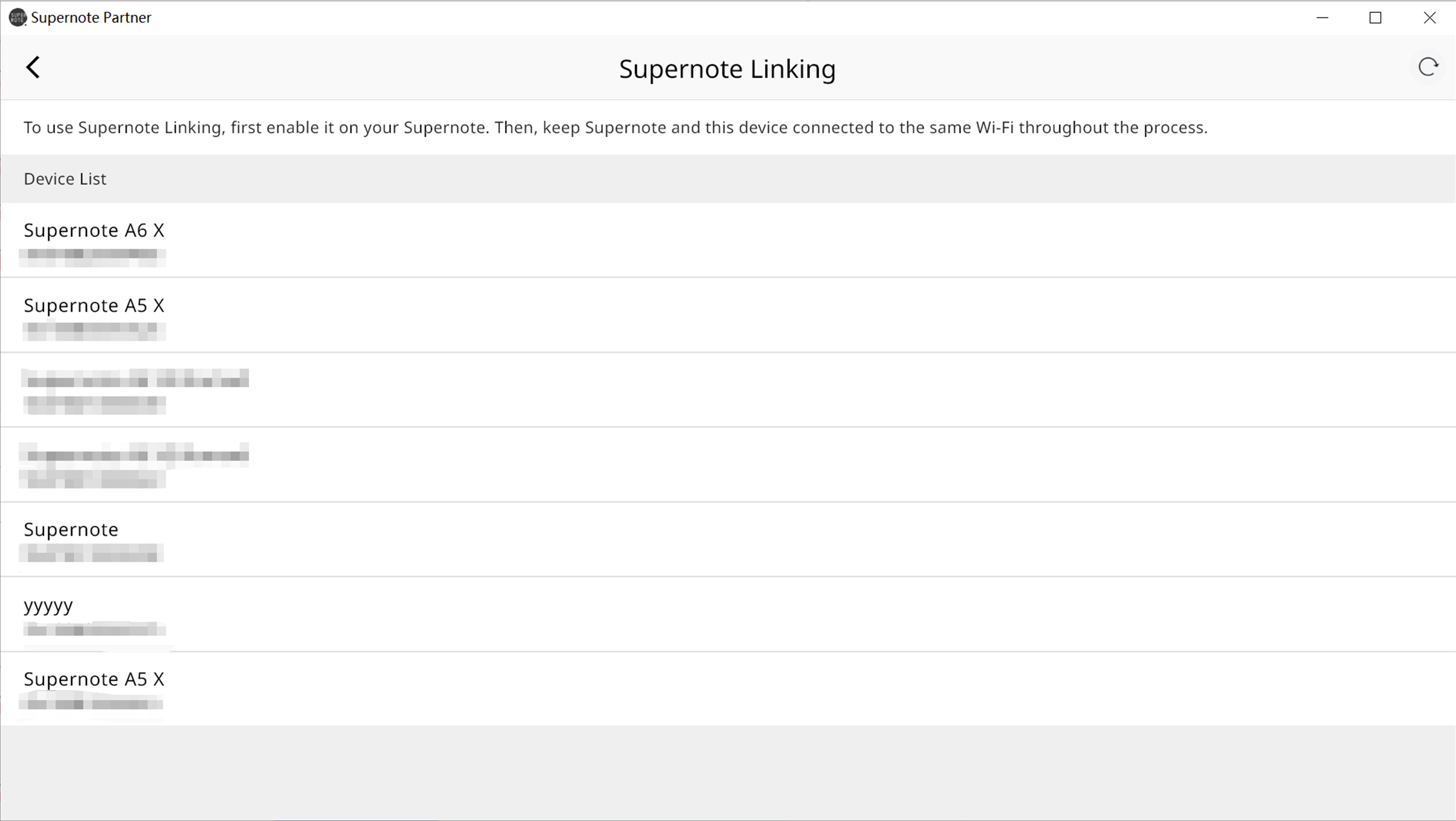
1. Select your Supernote device you want to pair with from the list. 
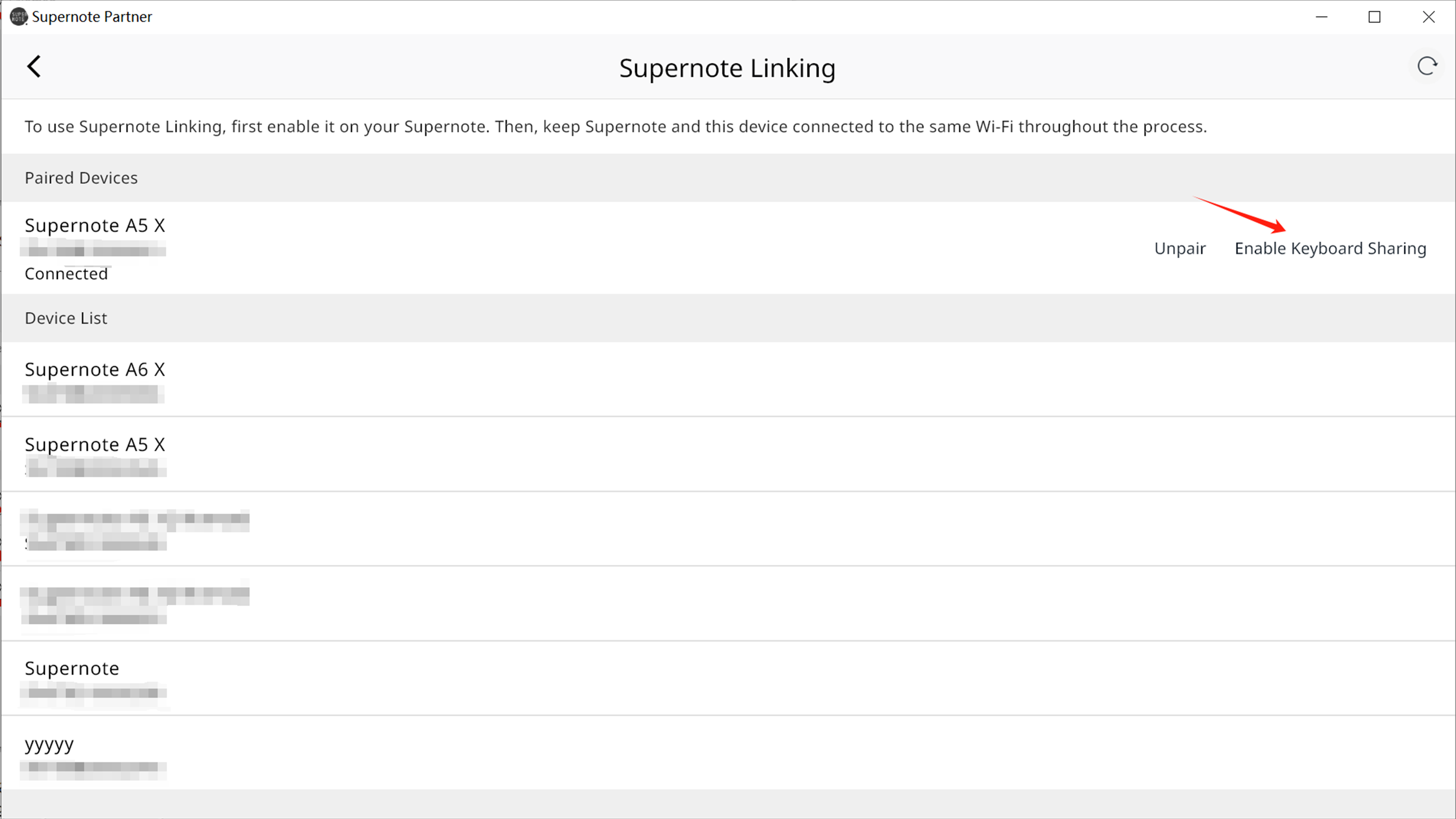
2. After successful pairing, click "Enable Keyboard Sharing".  
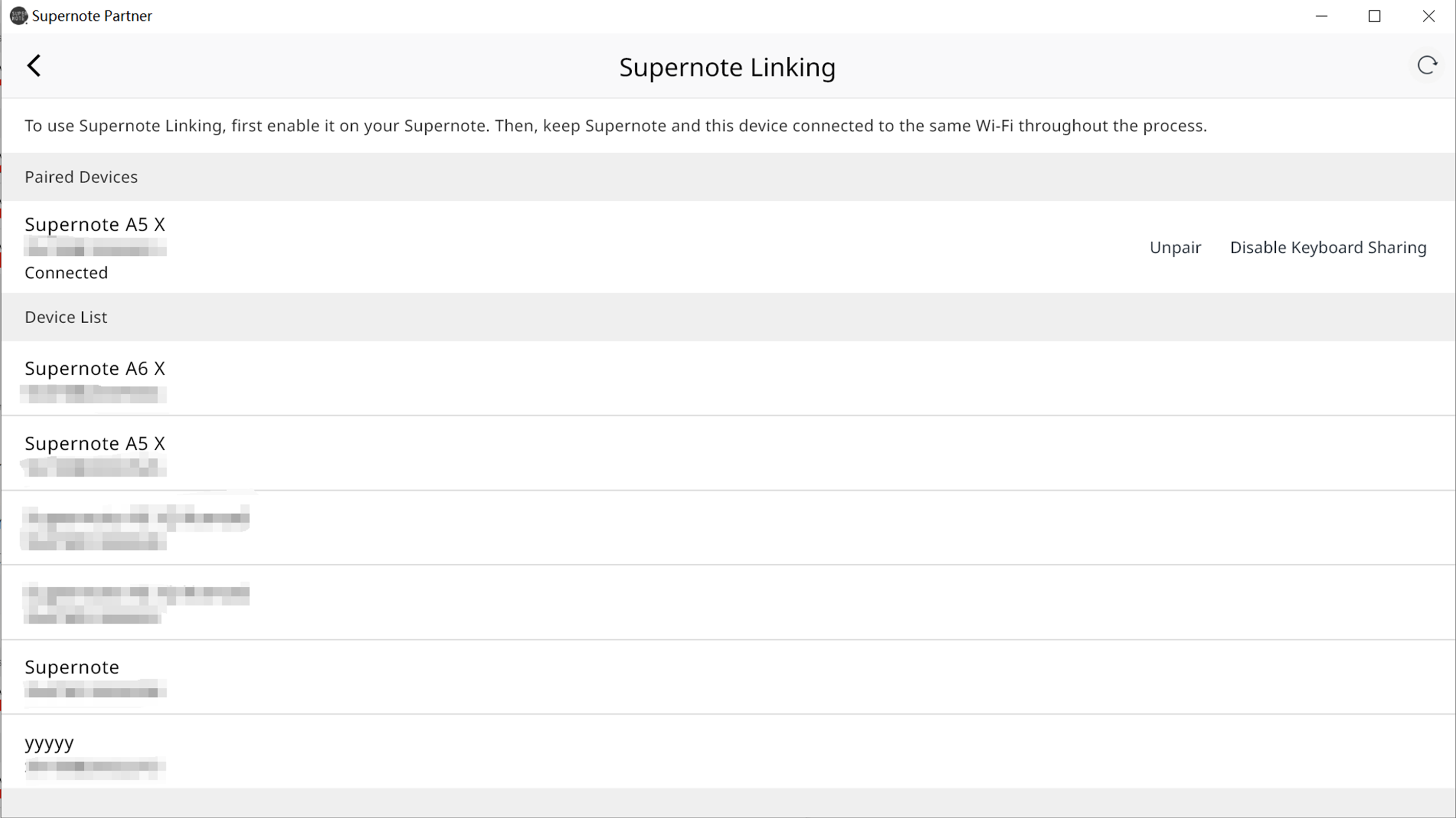
3. You can create a Word document on your Supernote device and conveniently enjoy typing on your PC's keyboard. 

4. Please note that keyboard input can only be shared to your Supernote device when the interface is displayed in the foreground.
collaboration desktop app

Was this article helpful?

Yes
No
Give feedback about this article

Related Articles

  • Two-Finger Gesture Eraser/Lasso
  • Introduction to the Toolbar
  • USB OTG
  • LAMY Side Button

Copyright © 2025 Ratta Supernote


Knowledge Base Software powered by Helpjuice

Expand